Managing a busy schedule can be quite a task, especially when you need to set up recurring events that occur every other week. Whether it's for personal plans or work-related tasks, finding an efficient way to handle these bi-weekly occurrences is crucial. Fortunately, there's a much simpler method to achieve this using Zapier's automation capabilities. In this blog post, we'll guide you through the process of setting up a seamless every other week schedule using Zapier and a few lines of JavaScript code.
Step 1: Setting Up the Automation
To get started, you'll need a Zapier account. If you don't have one yet, you can easily sign up on their website. Once you're logged in, follow these steps:
Choose Your Time and Day: First, determine the specific time and day you want your recurring event to take place. For the sake of this example, let's say we're scheduling something for Mondays.
In case you need to trigger off of other week days as well, you’ll have to build another zap. You can duplicate the entire Monday zap once is finished, and change the day.
Step 2: The JavaScript Code
The magic happens when you incorporate a simple JavaScript code snippet into your Zaps. This code helps you determine whether the current week is even or odd, allowing you to schedule events accordingly. Here's the code:
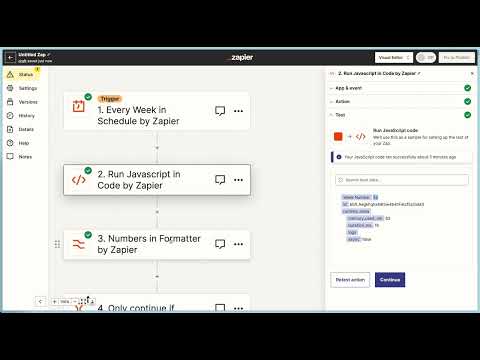
Add a "Run JavaScript" Action: In your Zap, add a "Run JavaScript" action step. Paste the provided JavaScript code into the code editor.
Output Week Number: The third line of the code calculates the week number based on the current date. This week number is crucial for the automation. After running the JavaScript, use a subsequent step to format this number.
Formatting the Output: Use a formatter action in Zapier to process the week number. Choose spreadsheet-style formula to determine whether the week is even or odd. The formula should look like this: is even(${step2__output}).
Applying Filters: The final step involves using Zapier's filter. Depending on whether you want the event to occur on even or odd weeks, set up filters to continue or halt the automation based on the output of the previous step.
Conclusion
And there you have it – a straightforward way to set up an every other week schedule using Zapier's automation and a small JavaScript code snippet. With just a few actions and lines of code, you can easily manage recurring events that align with your bi-weekly needs. Say goodbye to complex scheduling challenges and embrace the simplicity of automation. Whether it's for personal reminders or professional tasks, this approach can save you time and effort, ensuring you never miss an important event again.
Need a Zapier Sheets and Notion integration? Notion does not sync to Google Sheets natively. Use Zapier, Make, or Sync to Sheets to move data reliably.
Use Zapier as a CRM connector to route B2B leads from email, WhatsApp, web forms, and IndiaMART into one pipeline—cutting response time from hours to seconds.
A misconfigured pagination parameter caused 5,000+ duplicate time entries in a QuickBooks automation. Here's how we diagnosed and fixed the STARTPOSITION bug.



 Made with Bullet